Building a Repertoire
A repertoire in Masterboard is a named collection of opening lines for one colour. You can have multiple repertoires — for example, one for your main 1.e4 system and one for your 1.d4 lines.
The Openings page is a single two-pane workspace: a side-nav on the left lists your repertoires, and selecting one opens it for editing in the workspace on the right. See UI Overview for the full layout.
Creating a repertoire
Section titled “Creating a repertoire”- Go to the Openings page from the left sidebar.
- Click New repertoire at the foot of the side-nav.
- Choose White or Black and give the repertoire a name (e.g. “1.e4 Repertoire” or “Sicilian Defence”), then click Create.
- Select the new repertoire in the side-nav to open it for editing.
Adding moves
Section titled “Adding moves”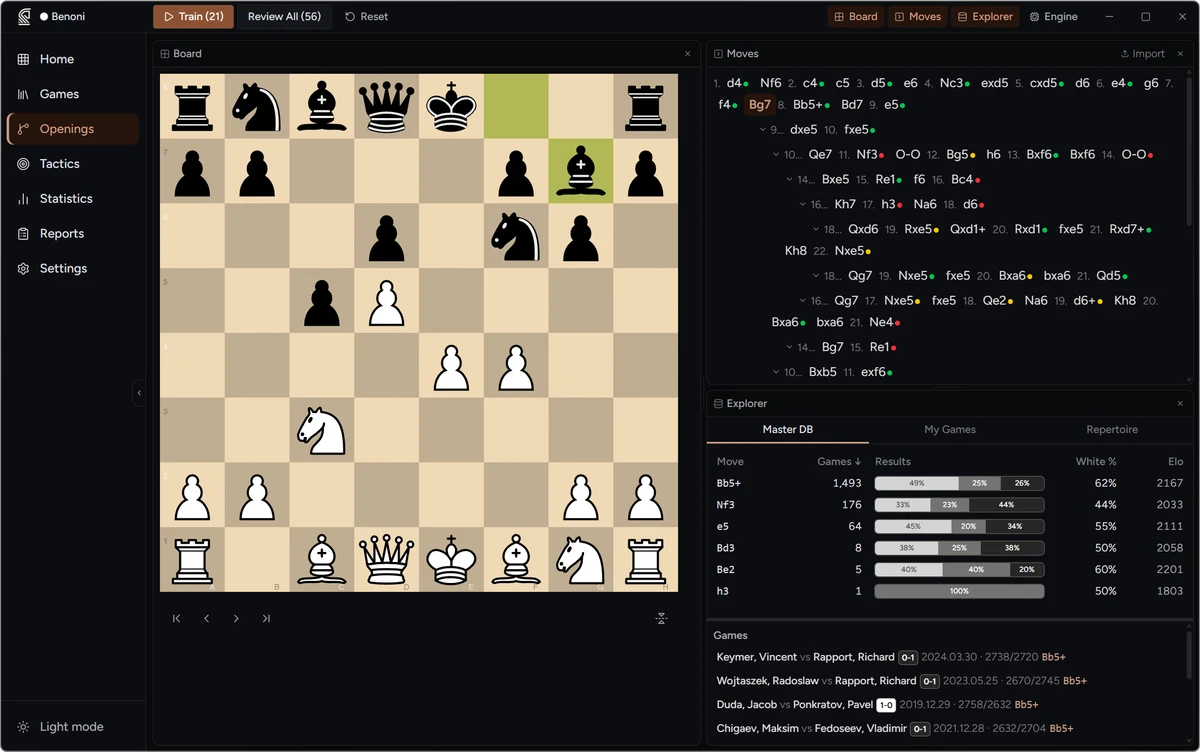
With a single repertoire selected, the workspace shows an interactive board and a variation tree in the Moves panel.
Make moves on the board to add them to the repertoire. After each move, the tree panel updates to show the new branch.
Adding variations
Section titled “Adding variations”To add a second line from the same position:
- Navigate back to the branching point using
←or by clicking the move in the tree. - Play a different move. A new branch is created automatically.
For example, after 1.e4, navigate back to move 1 and play 1.d4 to begin a second opening system.
Right-click moves in the tree
Section titled “Right-click moves in the tree”Right-clicking any move in the Moves panel opens a context menu with comment and NAG annotation (!, ?, !!, ??, !?, ?!), branch reordering, Train branch, and Delete branch (removes the move and all continuations from that point).
Reordering branches
Section titled “Reordering branches”To change the order of sibling moves in the tree, drag any move up or down using the drag handle that appears on hover, or use the up/down controls in the context menu. Branch order is persisted in the database and determines the default weight order when exporting a Polyglot book — the first sibling gets the highest weight.
Renaming a repertoire
Section titled “Renaming a repertoire”In the side-nav, hover the repertoire row and click the rename (pencil) action. The name becomes an inline text field — edit it and press Enter to confirm, or Escape to cancel.
Coverage heatmap
Section titled “Coverage heatmap”Each move in the tree displays a small colour-coded dot reflecting its FSRS recall probability:
| Dot | Meaning |
|---|---|
| Green | Well retained (≥ 0.9) |
| Yellow | Still being learned, or due soon (0.7–0.9) |
| Red | Lapsed, or overdue and weak (< 0.7) |
| No dot | Never reviewed |
Use the heatmap to identify branches that need attention. Right-click any move and select Train branch to drill that subtree directly.
Starting a drill session
Section titled “Starting a drill session”With a repertoire selected, the titlebar toolbar shows a Train [name] button (a due-date drill of that repertoire) and a Review [name] button (walks every move once in depth-first order, ignoring SRS due dates — for pre-tournament preparation). Right-click any move and select Train branch to scope a session to that subtree. See Training.
Explorer panel — Repertoire tab
Section titled “Explorer panel — Repertoire tab”The Explorer panel includes a Repertoire tab. For the current board position it shows which of your repertoires cover that position and what move is prepared. Use it alongside the Master DB and My Games tabs to understand the relationship between your preparation and master practice at each position.
Workspace layout
Section titled “Workspace layout”In editor mode the workspace uses the same mosaic layout as the Home page. The Board, Moves, Explorer, and Engine panels can be independently resized and repositioned by dragging their headers and edges.
Polyglot book export and import
Section titled “Polyglot book export and import”You can compile any repertoire into a Polyglot .bin opening book for use with engines and GUIs such as Arena, Cute Chess, or Scid vs. PC. In the side-nav, hover the repertoire row, open the Export menu, and choose Export Polyglot .bin…. Move weights in the exported file follow branch order by default; the export dialog lets you adjust weights for positions with multiple candidate moves before writing the file.
To import an existing .bin file, use the side-nav Import menu → Import Polyglot .bin… and choose a destination (a new repertoire or an existing one). Polyglot books carry no annotations, so comments and NAGs will be absent from the imported repertoire.
See Polyglot Books for full details on the export and import workflow.
Next steps
Section titled “Next steps”- Import lines from a PGN file to populate your repertoire quickly.
- The Explorer panel shows move statistics from the master database and your personal games for every position in the repertoire. See Master Database.
- Polyglot Books — export your repertoire as a
.binfile or import an existing book.